
Fastsub Beginner Guide Generate Subtitles From Video
How to use fastsub to generate subtitles from a video. Here is a guide for a beginner
Main steps:
- Add Video and Create a Project
- Select the Language to Translate
- Wait for Audio Upload and Transcription
- Proofread and Edit Subtitle Text
- Set Subtitle Styles
- Burn and Export
- Add Video and Create a Project
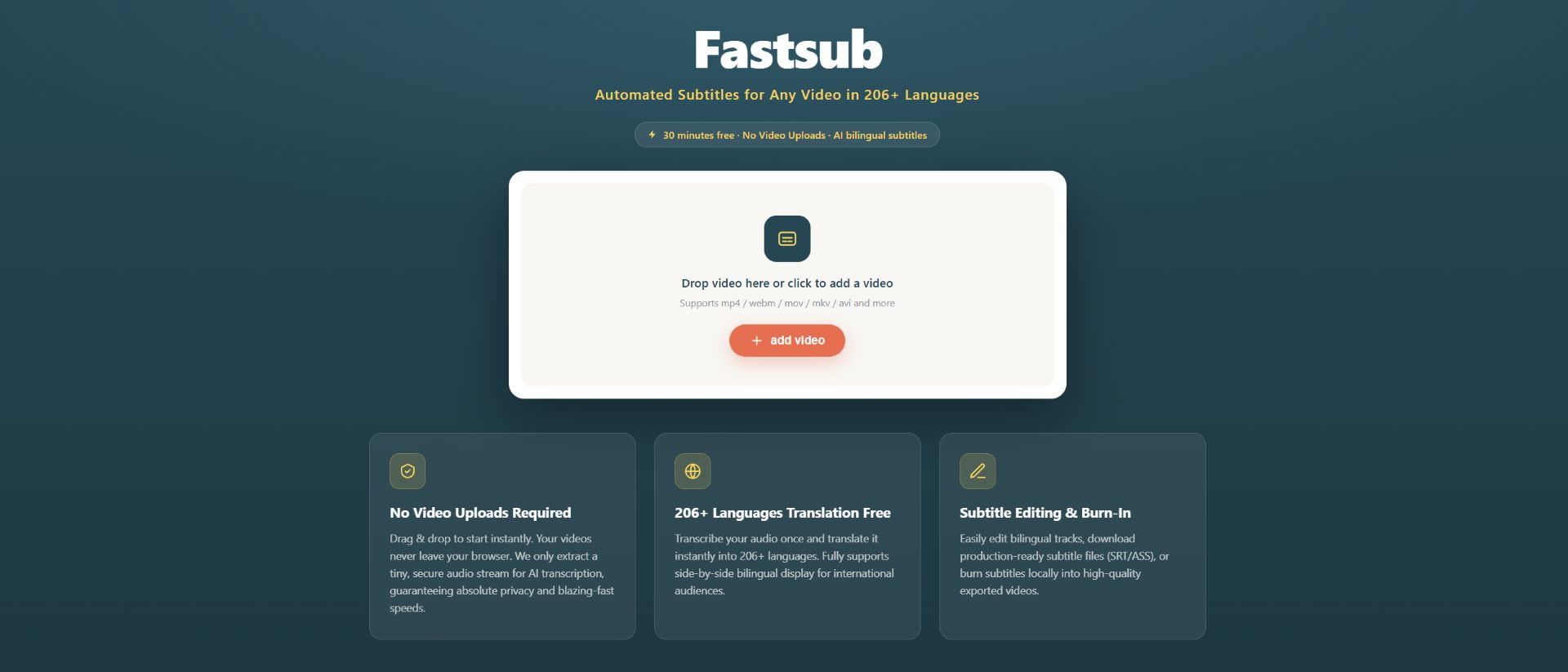
Open Fastsub and create a new project. Import your video or audio file (supports common formats). The tool will automatically create a workspace for subsequent transcription and editing.
- Select the Language to Translate
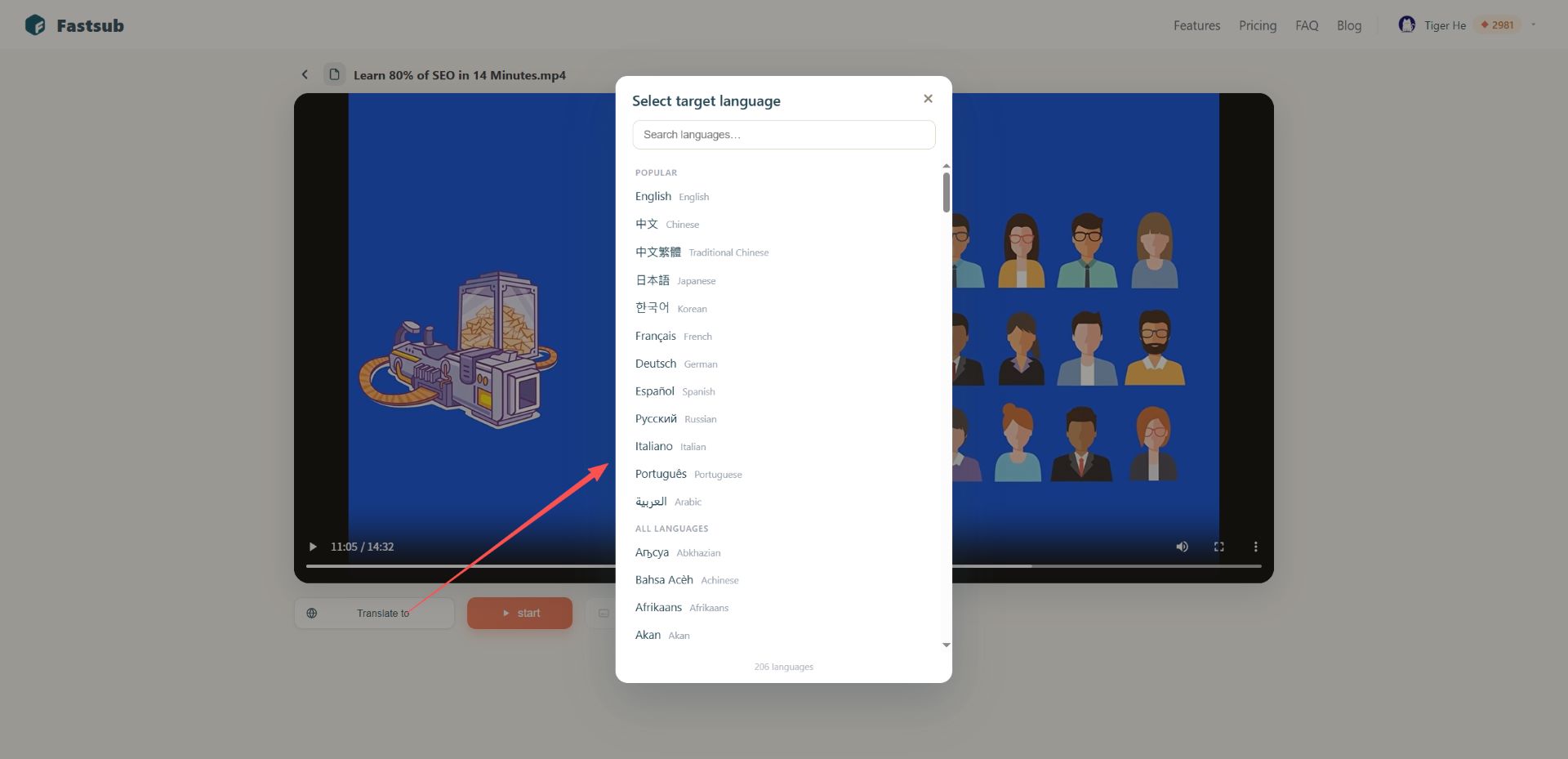
In the project settings, keep the "translate to" with no choice only transcription with original language. with specifying the target translation language, fastsub generate both original and target language subtitles.
- Wait for Audio Upload and Transcription
Start the transcription task. No video upload is required, only audio will be uploaded to the server for transcripting. Transcription time depends on video length and model speed—please wait patiently. And once transcripting. You can choose another target language for translation. And translation always free.
- Proofread and Edit Subtitle Text
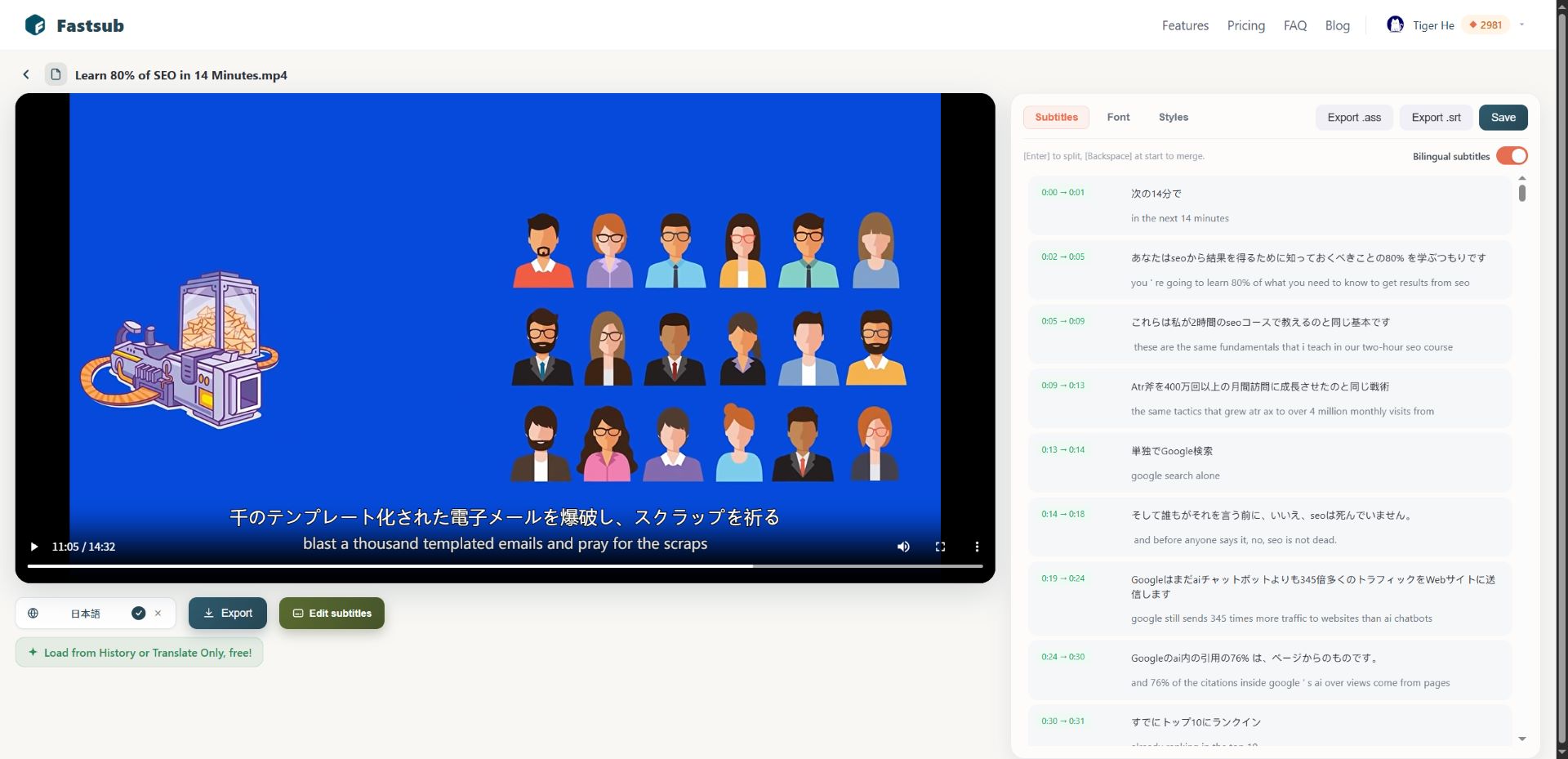
Once transcription is complete, the subtitle segments will be displayed in a timeline or list. Check for typos, incorrect timestamps, or missing content segment by segment. Most tools allow direct clicking to modify text and drag to adjust subtitle durations.
- Set Subtitle Styles
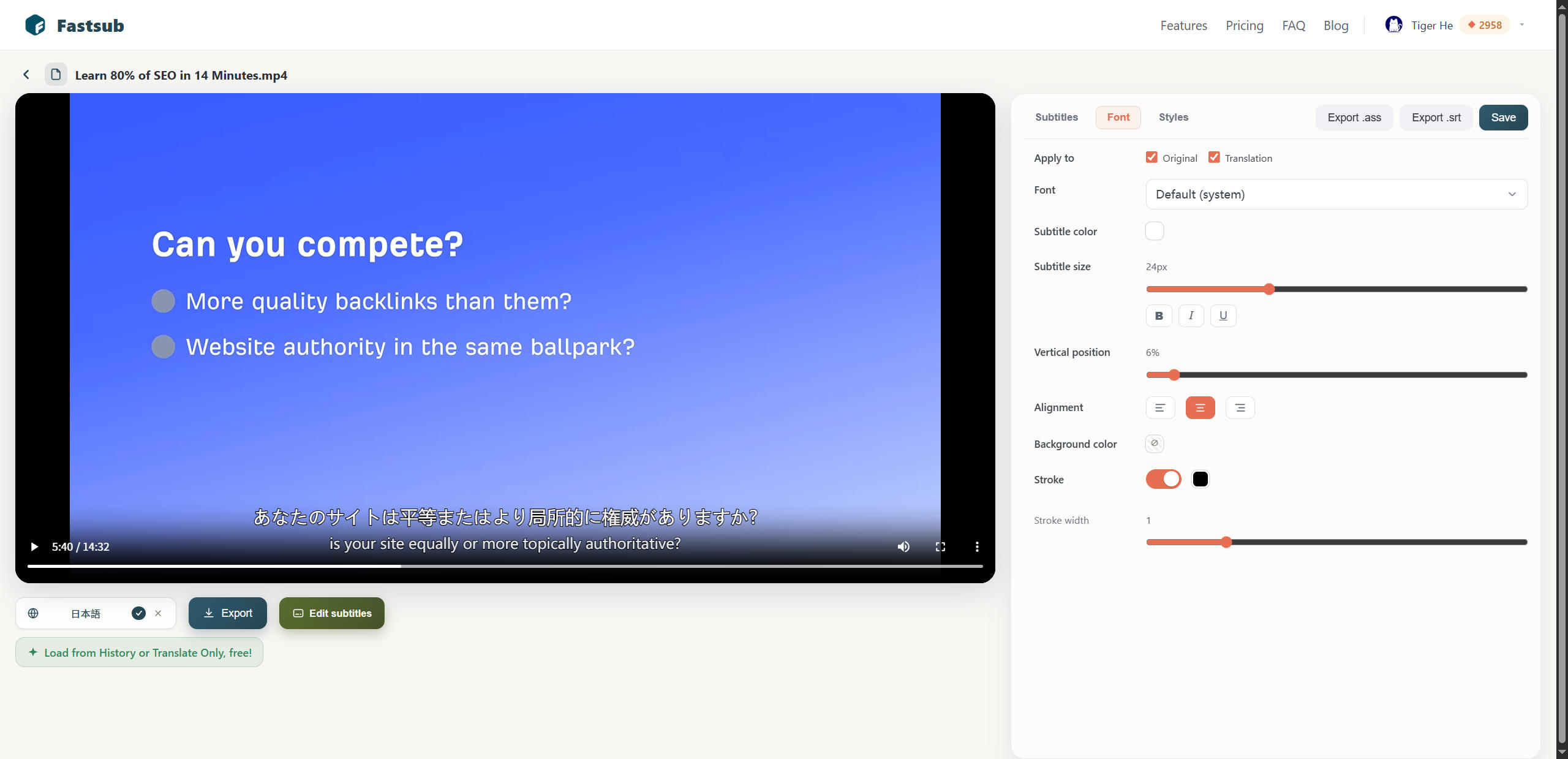
Enter the style settings panel to adjust font, size, color, background box, or shadow. If you plan to burn subtitles into the video, the style set here will directly affect the final visual effect.
- Burn and Export
Choose the export method: export a separate subtitle file (SRT/ASS) or burn subtitles into the video (hard subtitles). Burn-in requires a little long time depending on hardware