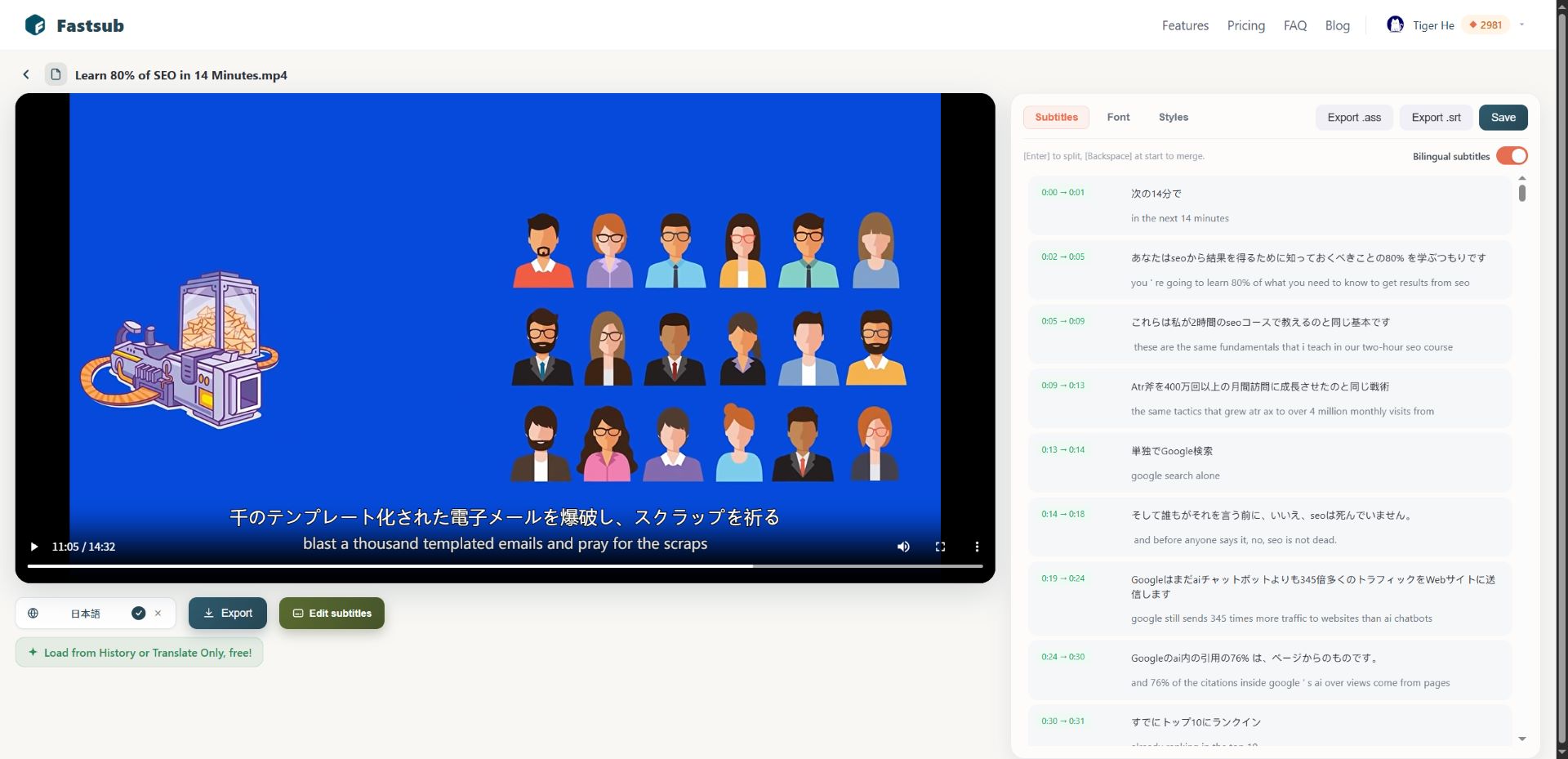
Using fastsub to add subtitles to video part1
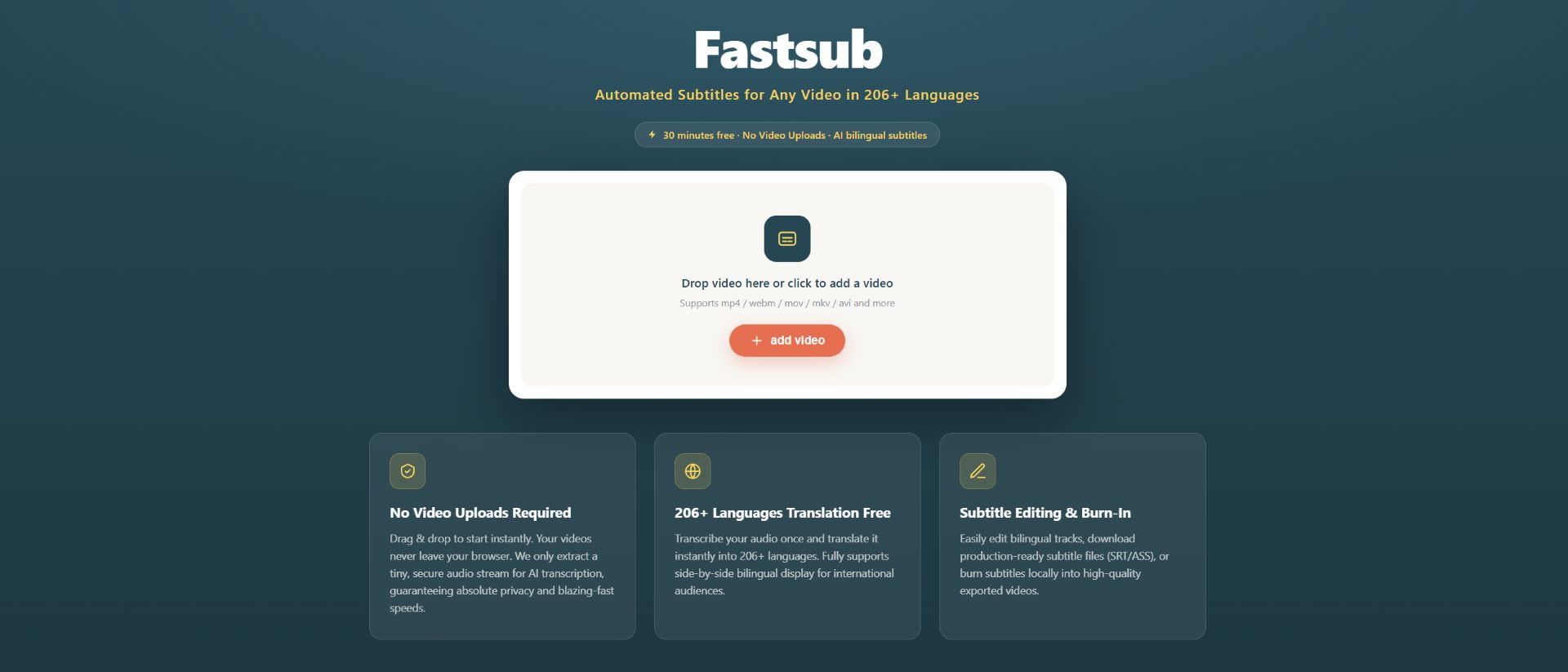
step1: add your local video
Visit fastsub.app and click the add box on the page-load interface to select a local video file.
Unlike tools that upload your entire video to a remote server, Fastsub processes only an extremely small audio track extracted from your file. Your actual video never leaves your device. This design delivers two key benefits: exceptional speed, since there is no large-file transfer bottleneck, and strong privacy protection for sensitive or proprietary footage.
step2: Flexible subtitles translation options
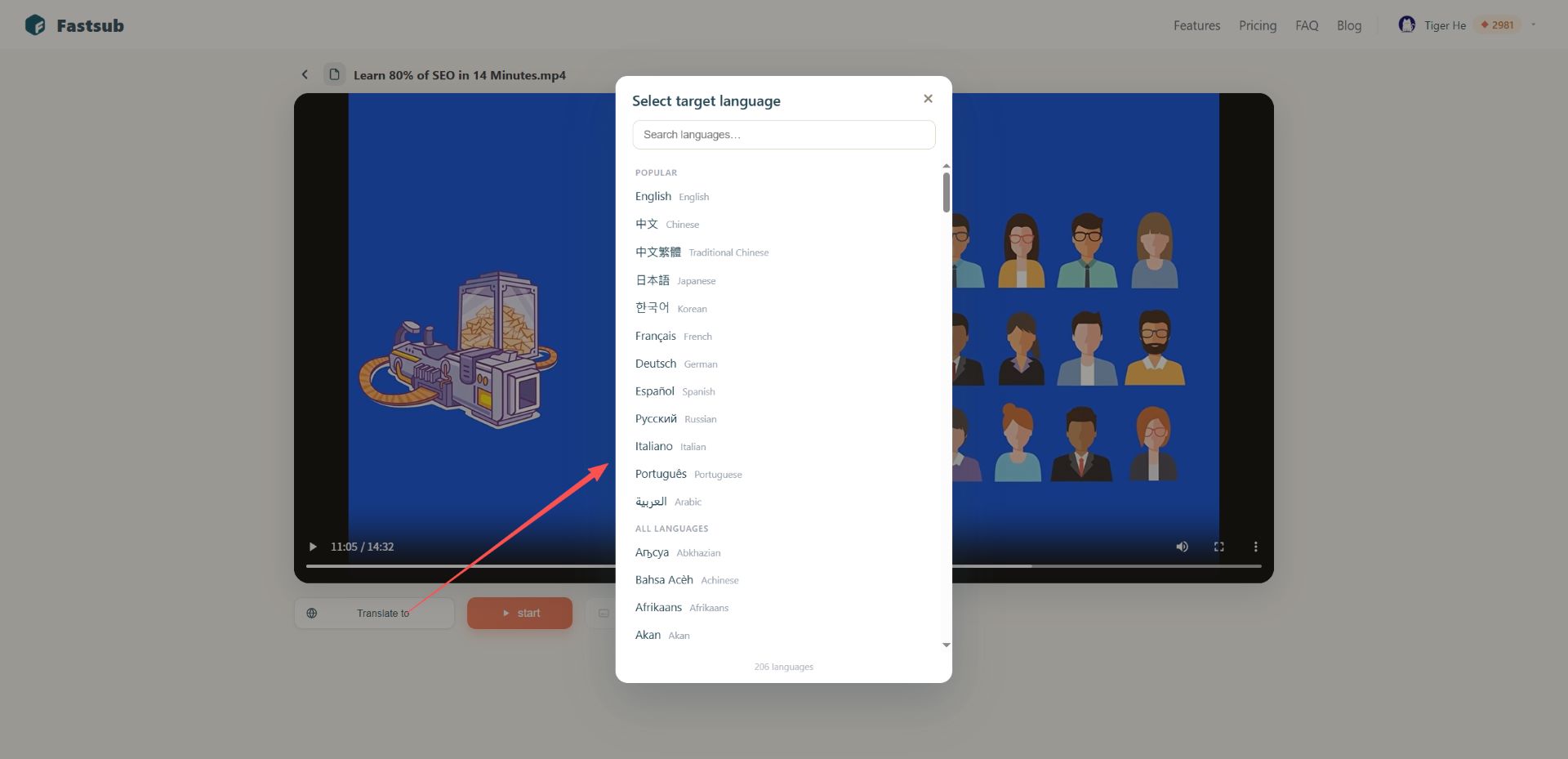
Fastsub can generate subtitles and translate into 206 languages
If you do not select a language, Fastsub generates subtitles in the source language, with automatic detection supporting 30 languages—ideal for quick, accurate transcription.
If you choose a target language, Fastsub produces bilingual subtitles showing both the original text and the translation, supporting 206 languages.
This makes it easy to reach global audiences or create multilingual content without separate transcription and translation workflows.
step3: Fast Processing and Editing
Fastsub add subtitles to video automatically complete transcription and translation. Processing time depends on video length, typically about 30 seconds per 10 minutes of footage.
Once subtitles generation completed, you are taken to a subtitle preview and editing page where you can review the text alongside playback, correct errors, adjust timing, and refine wording for professional quality.