
Using-fastsub-to-add-subtitles-to-video-subtitles-editing
Here showing Fastsub how to add subtitles to a video and how to edit sutitles online, just try here:https://fastsub.app
The Fastsub online editor uses a split-screen layout for efficient subtitle work.
Left Panel: Video Preview
After subtitles generation. The left side displays a video player that loads subtitles in real time. As the video plays, subtitle text appears overlaid on the frame, letting editors instantly check synchronization, readability, and placement without exporting.
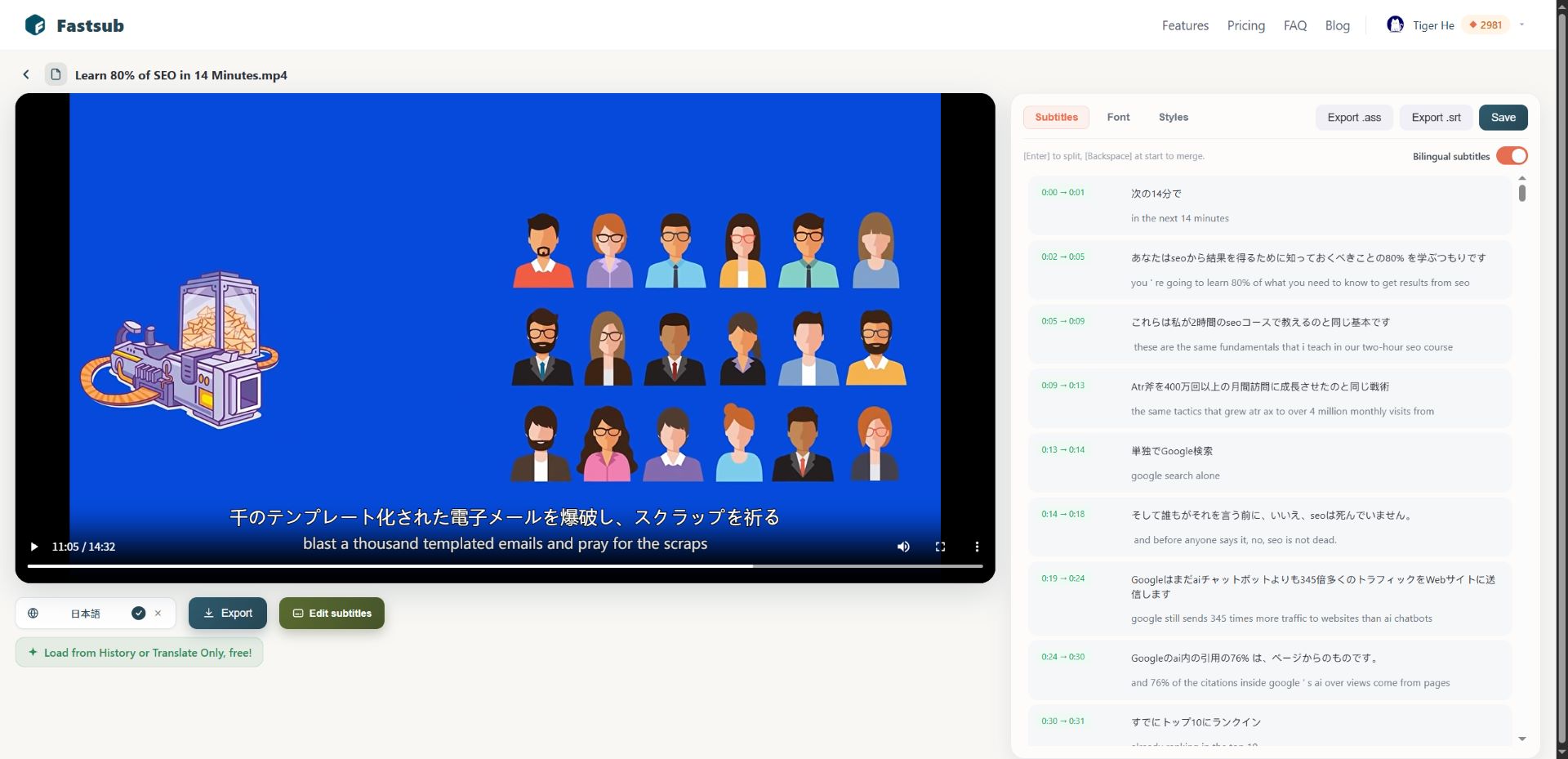
Right Panel: Subtitle Editing Area
Fastsub online subtitles editor offer powerful fuction to adjust subtiltes. The right side is the editing workspace, showing a structured subtitle list with timecodes, primary text, and bilingual comparison lines. This layout lets users scan the full file, verify timing, and review translations side by side.
Core Functions
- Edit text: Modify subtitle content directly to fix errors or refine phrasing.
- Delete: Remove individual subtitle segments entirely.
- Enter to split: Press Enter within a segment to break it into two separate cues.
- Backspace to merge: Press Backspace at the start of a segment to combine it with the preceding cue.
- Auto re-translation: Any split or merge triggers automatic re-translation of the affected block, keeping translated text aligned with new sentence boundaries.
In short, Fastsub combines real-time preview with text-centric editing, optimized for fine-tuning both timing and bilingual content with intelligent, segmentation-aware translation updates.